Are you a new macOS user and not sure where File Explorer on Mac is? Don’t worry, it hasn’t disappeared. On Mac, the built-in file manager is called Finder. You can use it to browse folders, open files, organize documents, and access apps, downloads, external drives, and more.
This guide explains how to use it and why some Mac users choose a more advanced alternative for better file organization.
Finder on Mac: What It Is and How to Use It
Finder is the main file manager on Mac and the Mac equivalent of File Explorer. It’s where you organize and access almost everything on your Mac, including documents, images, movies, folders, apps, and drives. If you want to learn more about its built-in tools, Apple’s Mac Finder Help guide is a useful place to start.
With Finder, you can view files in different layouts, sort and group items, create folders, use tags, search files, and customize the sidebar for quick access. However, many users, especially those coming from Windows or doing more advanced work, find Finder limiting over time.
Common complaints include a confusing storage structure, inconsistent search for complex queries, limited cloud integration beyond iCloud, and the need for extra steps or third-party apps for advanced file operations.
That’s why many users look for a more flexible file organizer Mac solution.
How to Open File Explorer on Mac
Here are three ways to open Finder on Mac:
- From the Dock: Click the Finder icon (it’s a two-toned square with a smiling face).
- Using a keyboard shortcut: Click an empty area on your desktop. Then press Command (⌘) + N to open a new Finder window.
- Using the app switcher: Press and hold ⌘, then tap Tab (⇥) to cycle through open apps. Keep pressing Tab until Finder is selected, then release Command.
Once Finder is open, here’s how to use basic file operations:
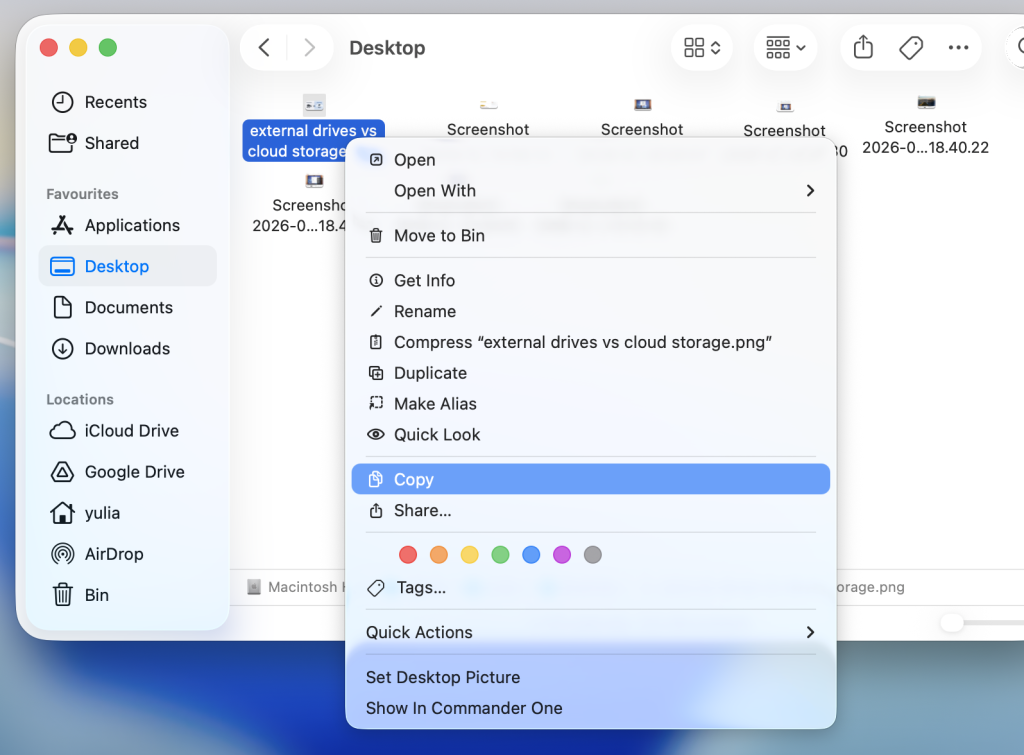
- Copy a file: Select it and press ⌘ + C, then go to the destination folder and press ⌘ + V. You can also right-click the file and choose Copy, then right-click in the target folder and select Paste.
- Move a file: Copy the file first (⌘ + C), then press ⌘ + Option (⌥) + V in the destination folder.
- Delete a file: Select it and press ⌘ + Delete, drag it to Trash in the Dock, or right-click and choose Move to Trash.
Bonus Tips: Opening Multiple Finder Windows and Using Tabs
You can open multiple Finder windows when working with different folders.
Right-click the Finder icon in the Dock and choose New Finder Window. You can also go to File → New Finder Window from the menu bar or press Command (⌘) + N.
For a tidier workspace, tabs are easier to manage than multiple windows. To open a folder in a new tab, right-click it and select Open in New Tab. This works for folders in the sidebar as well as those in the main window.
The downside: Finder tabs don’t show folders side by side. You can only switch between tabs. If you have to compare or transfer files between folders, a dual-pane file manager is much more convenient.
Best Finder Alternative for Advanced File Management on Mac
Finder handles everyday tasks just fine, but it can feel limiting when your workflow demands more. If you regularly transfer files between folders, work with archives, connect to remote servers, or manage cloud storage from multiple providers, you should consider using a dedicated third-party file manager like Commander One.
How to Configure Commander One for Easier File Browsing
Commander One is a full-featured alternative file manager built specifically for Mac. Its standout feature is a dual-pane interface that makes copying, moving, and comparing files significantly faster than in Finder. It also includes advanced search, archive support, cloud access, and remote server connections. It’s a complete file management solution for Mac users.
Key features include:
- Dual-pane interface: Work with two folders side-by-side for greater efficiency.
- Advanced file operations: Batch rename files, queue tasks, and track progress.
- Built-in archive support: Open, compress, and extract ZIP, RAR, 7ZIP, TAR, and more.
- Integrated Terminal: Run command-line actions inside the app.
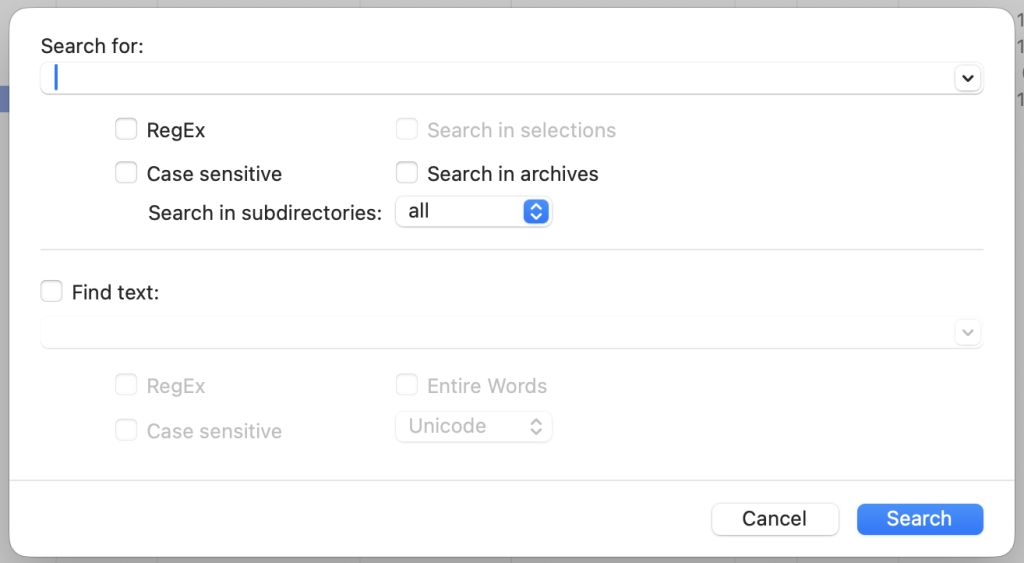
- Advanced file search: Search by name, content, archives, and regex.
- Cloud & remote access: Connect to Google Drive, Dropbox, Amazon S3, FTP, SFTP, FTPS, and WebDAV.
- Mobile & MTP device support: Access iOS, Android, GoPro cameras, and other MTP-enabled devices as disks.
- Customizable interface: Adjust the layout, hotkeys, and appearance to match your workflow.
Search for Files
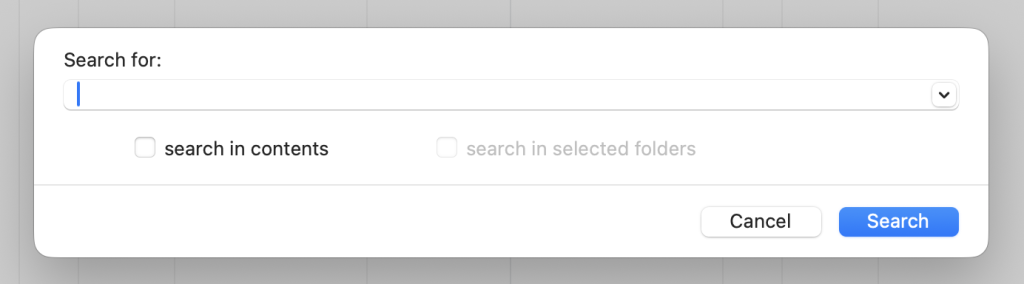
Commander One’s advanced search tools allow you to search by file name, content, or pattern, use Regular Expressions for more precise results, and search inside archives.
To search for a file:
Click the Search icon on the toolbar.
Enter a file name or search pattern.
Apply filters to narrow down results by type, size, or date.
You can also use Command → Search in Spotlight for local drive searches.
Show Hidden Files
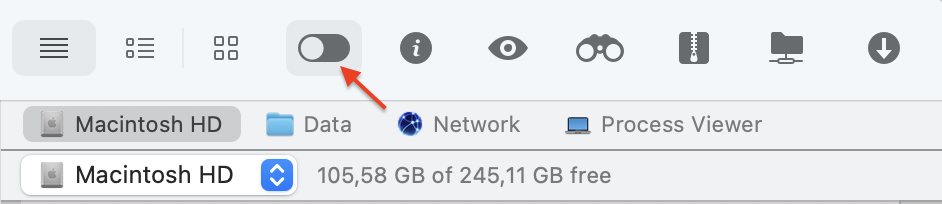
Hidden files are not shown by default to keep your workspace uncluttered and prevent accidental changes to system files.
To reveal them:
Open and Extract Archives
Thanks to the built-in archiver, you don’t need a separate app for working with compressed files. It supports popular formats including ZIP, RAR, TBZ, TGZ, and 7z.
To extract an entire archive:
Open Commander One and locate the archive in either panel.
Right-click the archive, then select Extract to unpack the files into the current folder.
To extract specific files only:
Locate the archive in either panel.
Double-click or press Enter to open it.
Select the files you need.
Click Copy/Move or press F5/F6 to transfer selected files to the folder open in the other panel.
View Running Processes
Commander One has a built-in Process Viewer that shows all active processes on your Mac in one place. You can review detailed information and quit any process with a single click. There’s no need to open Activity Monitor separately.
Connect via FTP/SFTP
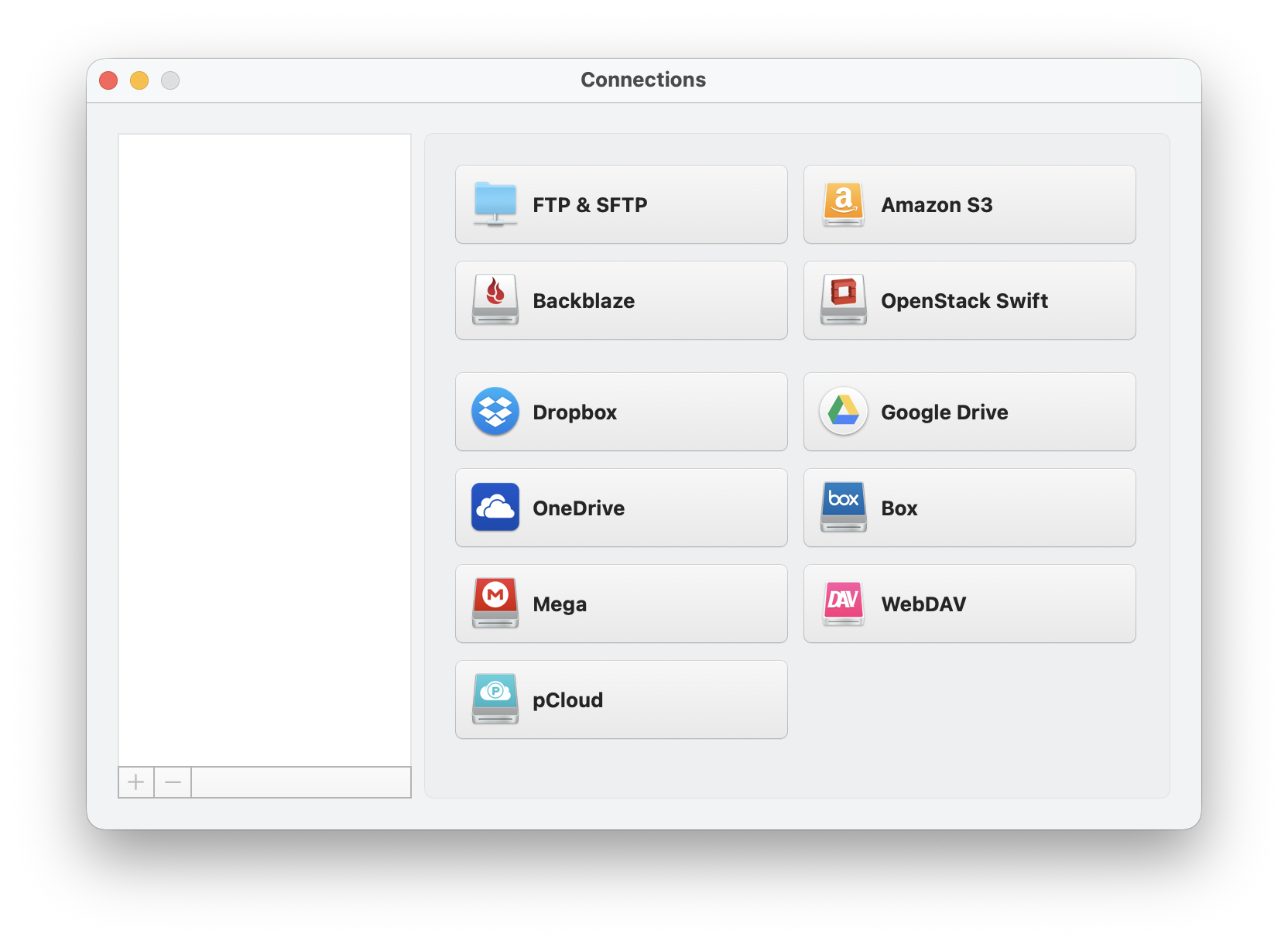
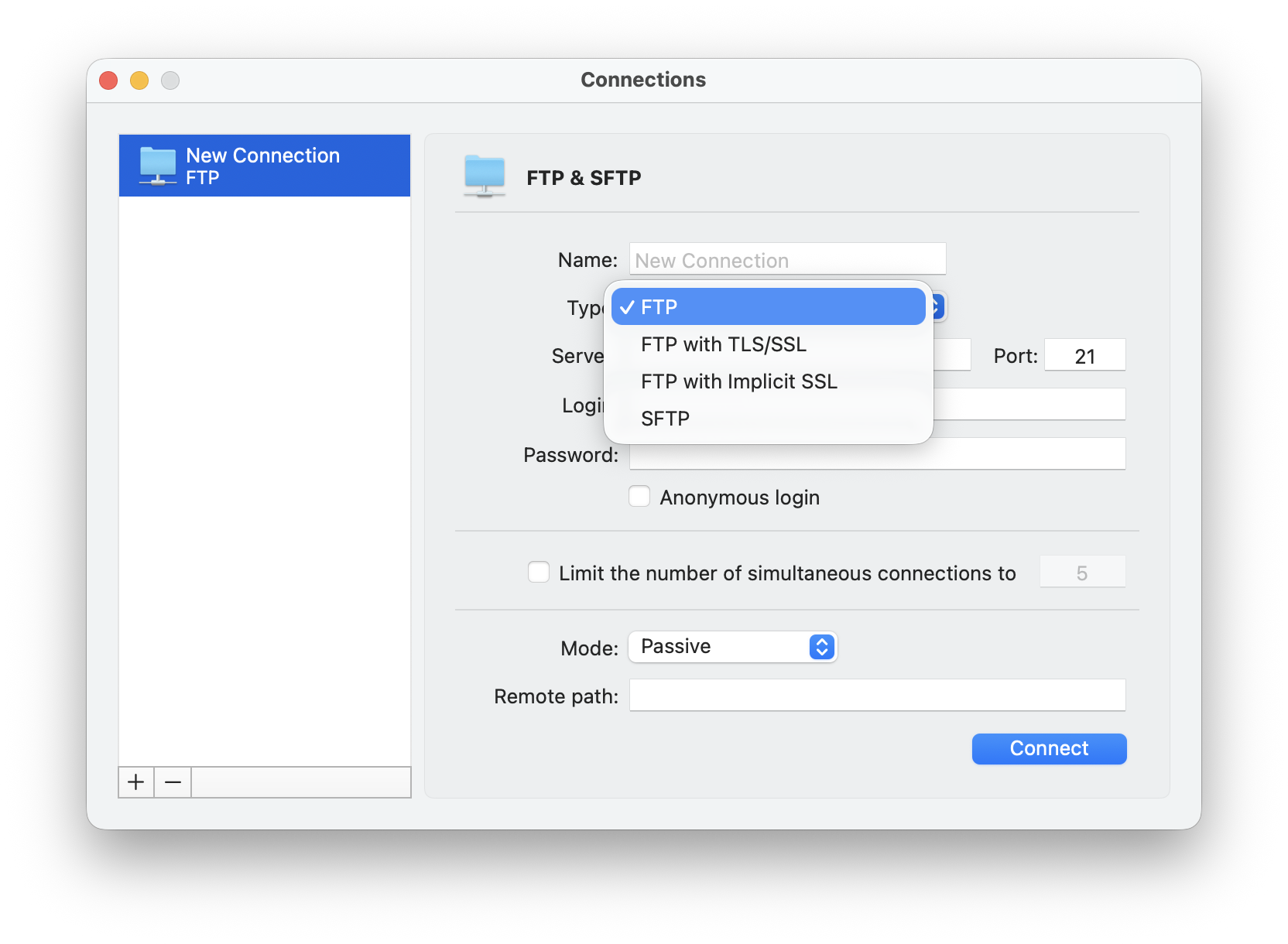
Commander One can also work as an FTP/SFTP client. It supports FTP, SFTP, FTPS, FTPES, and WebDAV connections, allowing direct file transfers between your Mac and remote servers using the dual-panel interface.
How to connect to a server:
Open Connections Manager via the toolbar icon, Window → Connections Manager, or Cmd + F.
Enter the server address and adjust the port if needed.
Enter your username and password, or use Anonymous login if allowed.
Select Active or Passive connection mode.
Set the remote path (the folder where files will be uploaded).
Click Connect.
Your server will appear inside Commander One, ready for browsing, uploading, downloading, editing, moving, and deleting files.
Manage Files on your Device
Commander One also helps you manage files on iOS and MTP devices. You can connect smartphones, tablets, GoPro cameras, e-readers, and other compatible devices to your Mac and browse their files directly.
How to use it:
Connect your device to your Mac with a USB cable.
Choose File Transfer mode on the device.
Open Commander One and browse and manage media files from your Mac using the dual-pane layout.
Conclusion
Finder is the Mac equivalent of File Explorer, and it’s perfectly capable for everyday file management tasks. But if you’re a power user, remote worker, or someone who manages large folders or multiple storage locations, Commander One is an advanced tool that gives you more control with dual-pane browsing, better search, archive tools, cloud access, FTP/SFTP support, and device management.