How to Monitor and Control Apps with Task Manager

To handle tasks on their computer more easily and efficiently, users need a helper. A task manager is a tool used to monitor and control system performance (CPU, memory, etc.), to manage running applications, and to close unresponsive ones. Windows users rely on Task Manager, while Mac users have Activity Monitor.

Windows users employ the shortcut Ctrl + Alt + Delete to access Task Manager. On macOS, however, this familiar combo doesn’t work, so switching from one operating system to the other means adopting different approaches.

As opposed to Task Manager, Mac users have Activity Monitor, a built-in app on every Mac. Its features include tracking CPU, memory, disk, and network usage, controlling apps and closing them whenever they become unresponsive.

Commander One, with its Process Viewer, offers a great way to keep track of active processes on Mac. It shows real-time status and detailed information and lets you easily quit apps. 

Main Features of Mac Task Manager - Activity Monitor

The purpose of Activity Monitor, the task manager for Mac, is to track all aspects of system performance, including CPU, memory, disk, network, and energy usage. It splits performance data into categories, making it easy for users to understand what resources are being used at a glance. The categories are as follows:

Activity Monitor shows all the processes currently running on your Mac. It organizes performance data into key categories, making it easy to see how your system resources are being used. Here’s what each category tracks: 

CPU Usage – Displays the amount of processor power being used by each application and process. It helps you identify which programs consume the most CPU resources and may be slowing down overall system performance.

Memory Usage – Shows how your Mac’s RAM is allocated across applications, cached data, and system operations. It can help you spot memory-intensive apps or potential memory leaks that may reduce system performance.

Disk Usage – Monitors storage drive activity, displaying the amount of data being read from and written to the disk.

Network Usage – Tracks incoming and outgoing network traffic, making it easier to identify applications or background tasks that consume significant bandwidth.

Energy Usage – Displays the power consumption of each app or process. This is particularly useful on laptops for improving battery life and managing overall energy efficiency.

How to Open Task Manager on Mac (Activity Monitor)

There are three ways to open Activity Monitor:

  • Using Spotlight Search:

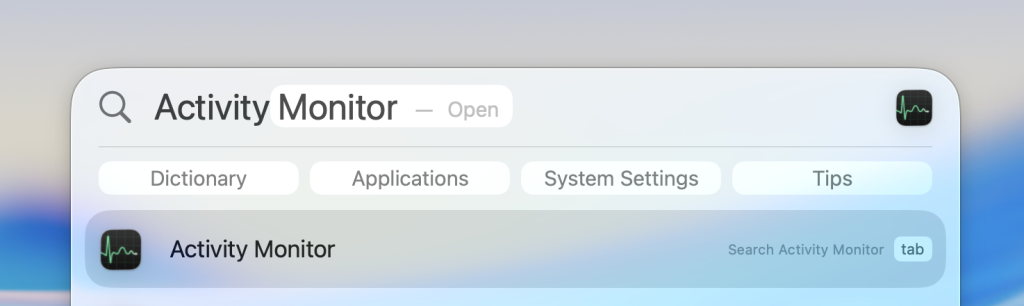
Press Command (⌘) + Space, then type Activity Monitor, and press Enter

Press Command + Space to open Spotlight, type Activity Monitor, and press Enter
  • Using Finder

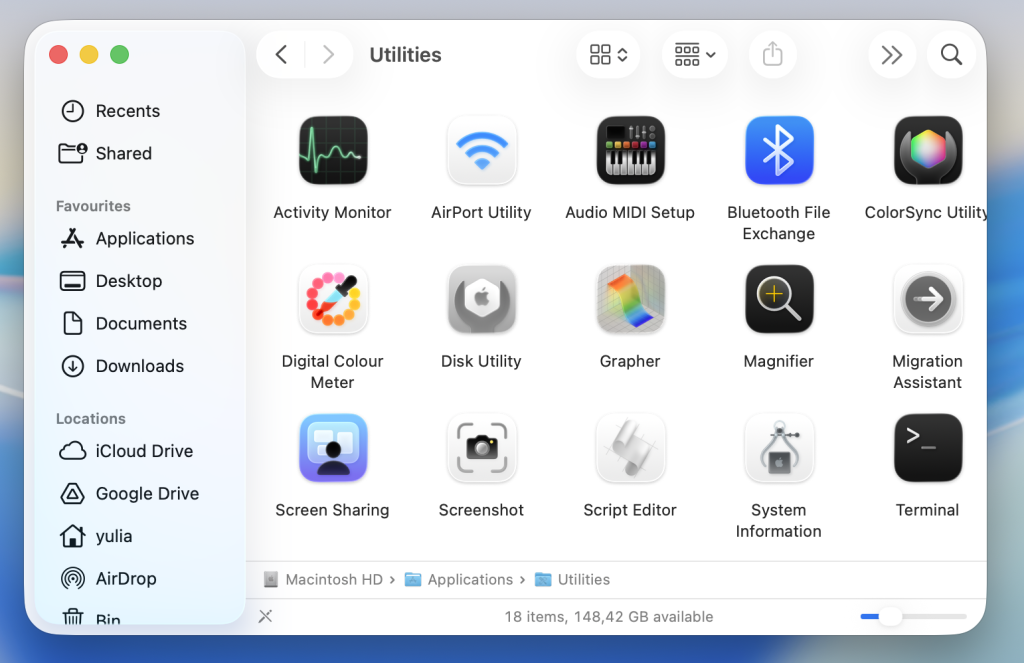
Go to Finder → Applications → Utilities → Activity Monitor

Open Finder, then navigate to Applications > Utilities > Activity Monitor.
  • From the Dock

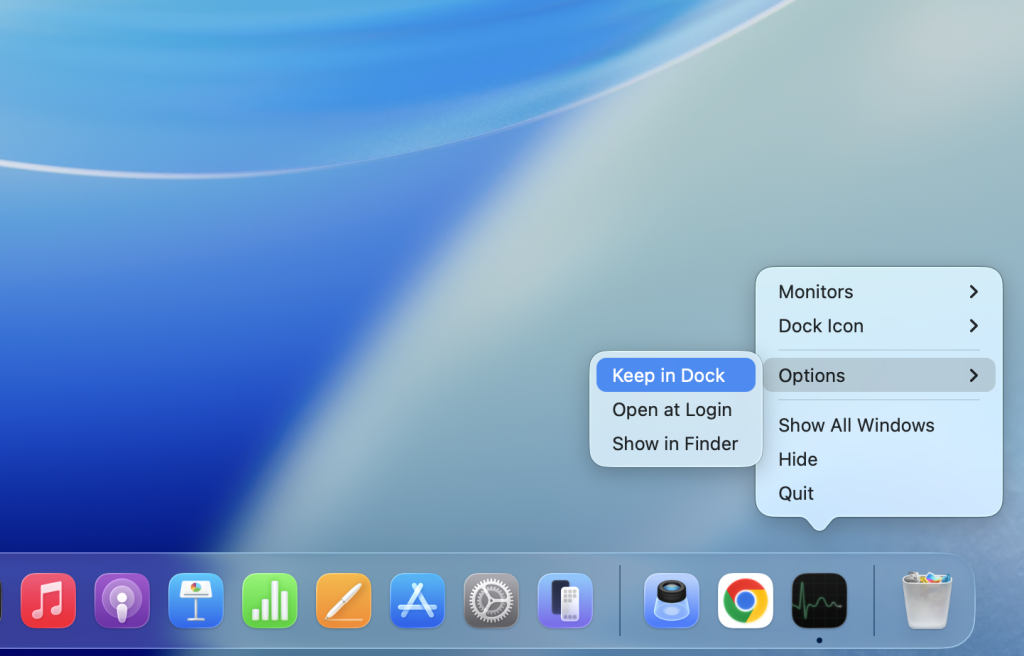
Launch Activity Monitor using one of the methods mentioned above. Then right-click on its icon in the Dock, choose Options, and click Keep in Dock. This will make it available for quick access straight from the Dock whenever necessary.

right-click the Activity Monitor icon in the Dock, choose Options, then click Keep in Dock.

Commander One: File Manager with Built-In Activity Monitor Features

Commander One, whose primary use is as a file manager for Mac, can serve as a great Activity Monitor or Task Manager equivalent. Thanks to its Process Viewer, it lets you monitor running apps and system activity.

Commander One’s main advantage is its dual-pane interface. It gives a comprehensive overview and access to files and processes all in one place. The Process Viewer even lets users sort tasks and search for specific ones. The PRO Pack offers a force-quit function as well. Using a keyboard shortcut (F8) or the context menu, users can stop processes quickly and easily.

In addition to its process monitoring capabilities, Commander One comes with additional tools such as Terminal access, file archiving, and FTP/SFTP support. It supports popular cloud services such as Dropbox, OneDrive, Google Drive, and Amazon S3, which can be mounted as local drives. Thanks to this versatility, the app makes for a convenient all-in-one solution.

To launch Process Viewer, complete the following steps:

1

Install and open Commander One.

2

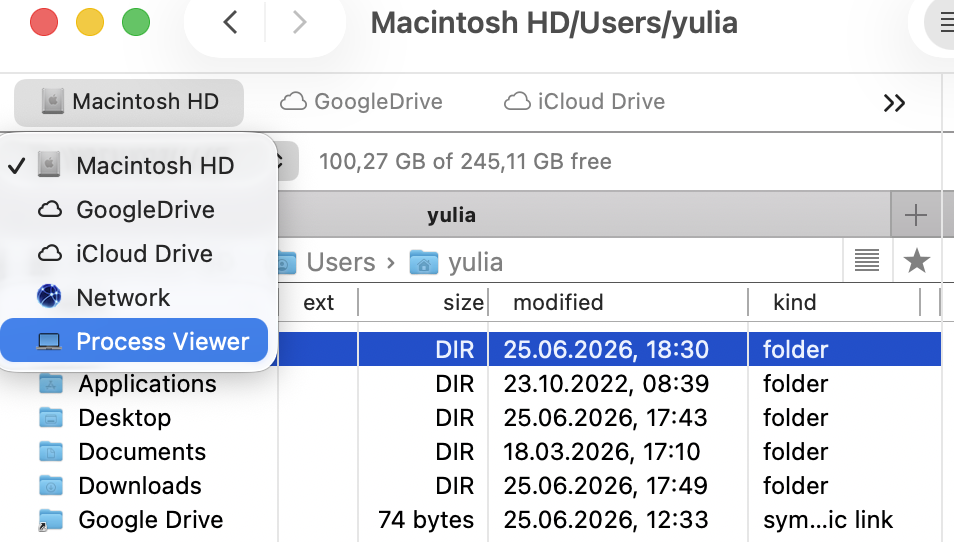
Click the drop-down menu at the top of one of the panels.
3

Select “Process Viewer” from the list.

This will display your process list alongside your folders and files. Commander One’s interface combines multiple functions, which means you get quick overall access to everything you need.

Conclusion

Activity Monitor is the built-in task manager for Mac that offers various performance monitoring features. Advanced users can also benefit from alternatives like Commander One thanks to their versatility. The app’s Process Viewer helps track system processes, while other features, such as cloud storage and remote server access, offer even more convenience and consolidation. Depending on their needs and goals, users should choose the tool that best corresponds to their workflow.