Every time you use an app, tool, or system feature, your Mac creates a process for it using CPU, memory, and disk space. Usually, these processes run quietly in the background. But sometimes, when a process overuses resources, you end up with a frozen app, a stuck background task, or an unresponsive Mac.
Before you force quit a random app or system task (and lose unsaved data), try finding the problem process and safely stopping it. This guide explains how to kill processes on Mac using multiple methods.
Method 1: Activity Monitor
This is the built-in macOS tool for checking active processes running on your Mac. It shows live usage of CPU, memory, energy, disk, and network usage, so you can spot apps or background tasks that are slowing things down.
Follow the steps below to kill process on Mac:
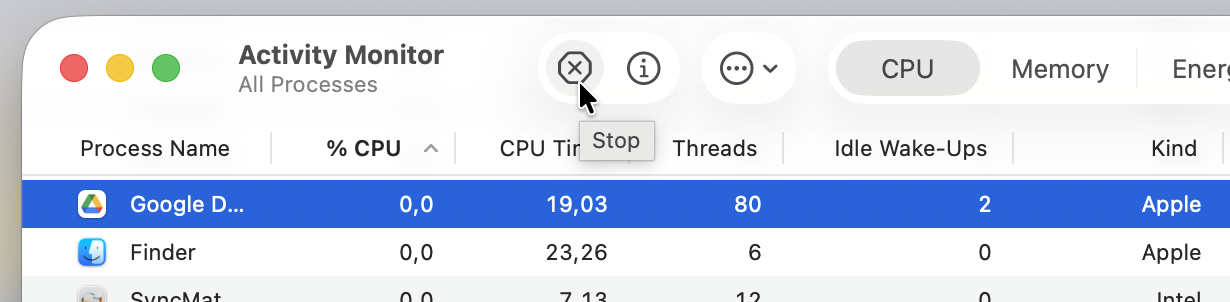
Open Activity Monitor from Spotlight or go to Applications > Utilities > Activity Monitor.
Scroll through the list of running processes or use the search bar to find an app. If you don’t see the app or process you want to quit, go to View > All Processes.
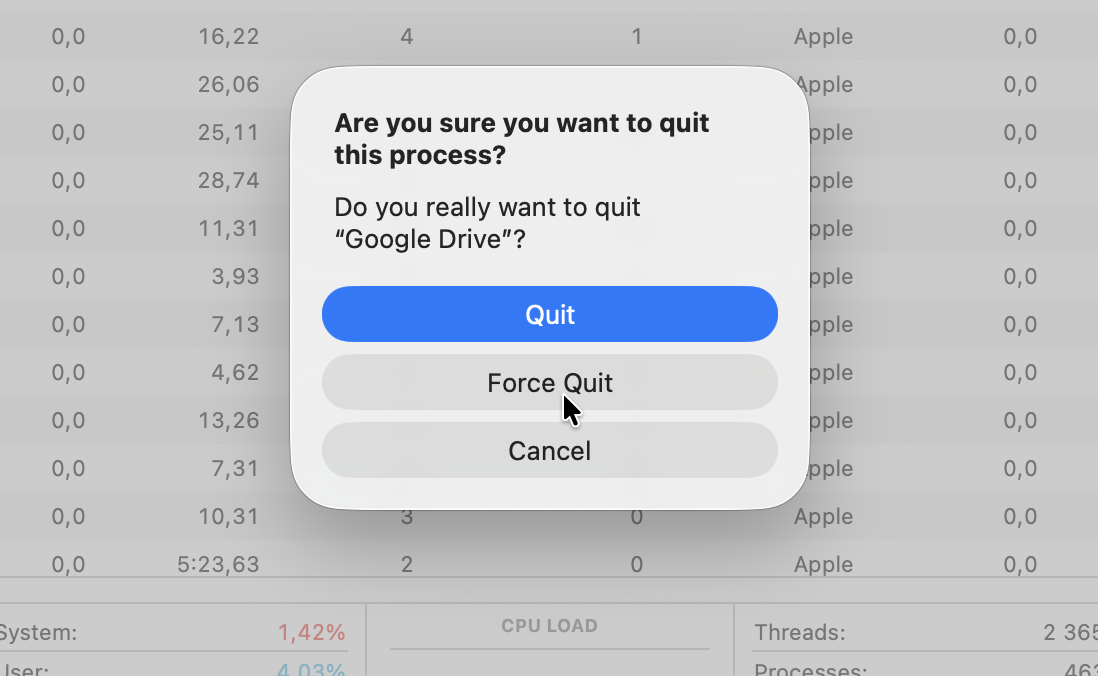
Click on the app/process.
Method 2: Terminal
Terminal is another way to view process activity and stop apps, but we only recommend it if you’re an intermediate or advanced user, and understand command-line syntax.
Since Terminal commands can immediately affect your system, use them only when you know which process to close.
To view and stop processes in Terminal, follow these steps:
- Open Terminal by:
- Pressing Command + Space, typing Terminal, and pressing Return.
- Or go to Applications > Utilities > Terminal.
2. In the Terminal window, type top and press Return to see a live list of running processes along with CPU and memory usage.
3. Process ID (PID) is the unique number assigned to a process.
- Note the PID number, then type
kill PID(replacing PID with the actual number). - This sends a normal quit request and gives the app a chance to close properly.
Alternative method: stop a process by name
Type killall -SIGKILL process_name (for example, killall -SIGKILL Commander One).
This command will close every process with that name, so be careful.
Method 3: Third-party App: Commander One File Manager
The methods above require you to open separate tools to manage a single misbehaving process. Commander One is a full-featured file manager for macOS that lets you handle everything from one place.
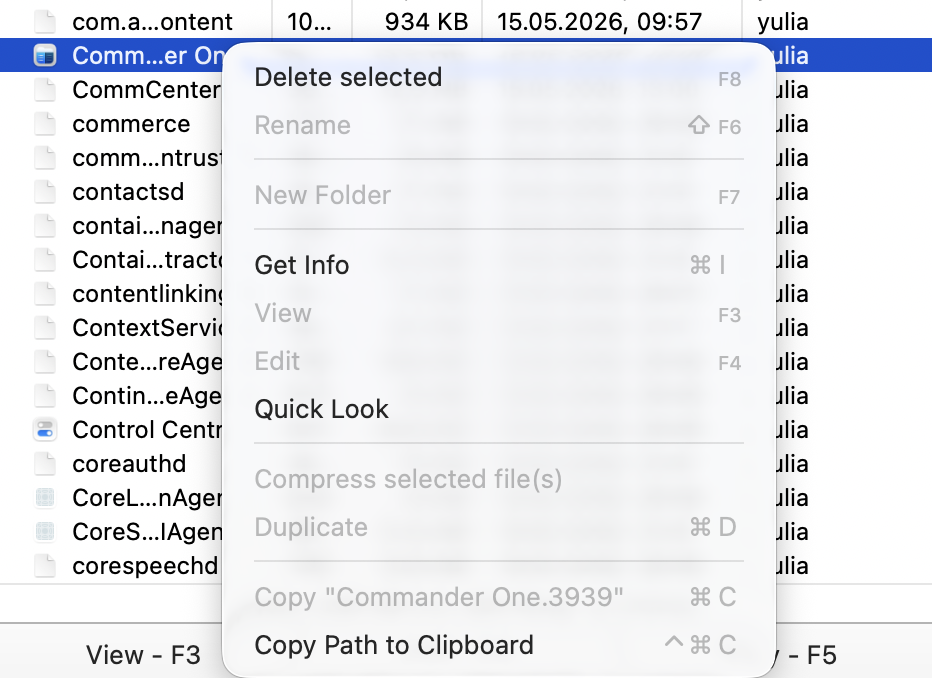
Alongside its dual-pane interface and advanced file management capabilities, it includes a built-in Process Viewer that lets you view process details and check CPU and memory usage at a glance. In PRO Pack mode, you can also quit or force quit processes directly from the same window. As convenient as it is, it also saves you a lot of time.
Follow the steps below to end task on Mac using Commander One.
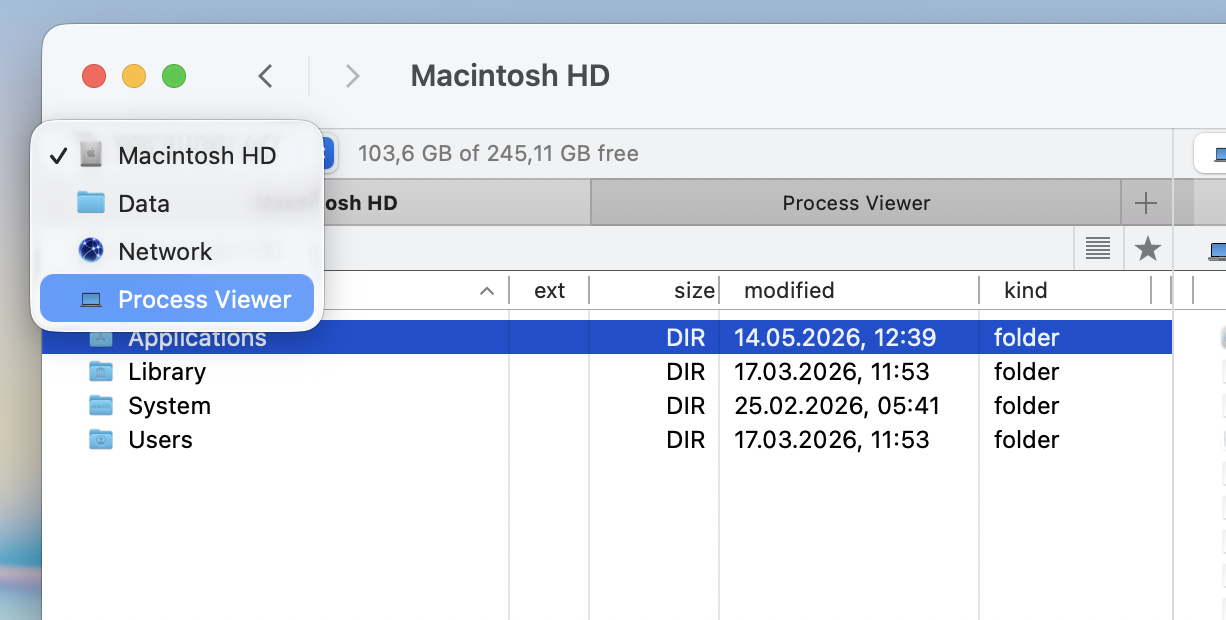
Launch Commander One from your Applications folder or Dock.
Click the drop-down menu at the top of a panel.
Browse the list of running processes or use the search bar to find the unresponsive or resource-heavy app or process you want to stop.
If you can’t find it, enable Show Hidden Files to reveal additional processes, including some running under other accounts.
Another advantage of using Commander One is that it has a built-in Terminal. This means you can run commands, check which processes are causing problems on your Mac, and force quit unresponsive apps without leaving the file manager. You can also create custom workflows in the same window, so everything feels more organized and easier to control.
Conclusion
Knowing how to stop a process on Mac can help you deal with frozen apps, slow performance, and heavy background process activity. For most people, Activity Monitor is the safest option, while Terminal gives more control to advanced users.
You might find Commander One more convenient. It combines these tools in one place and makes it easier to manage stuck apps and background processes while also handling your files.