How to Use SFTP on Mac

Need to move files between your Mac and a remote server? SFTP lets you transfer files securely over an encrypted connection, regardless of file size. Unlike old-school FTP, it keeps both your login details and data protected during the transfer.

As a macOS user, you can connect to SFTP servers using the built-in Terminal app. Still, many people prefer third-party software like Commander One for easier file navigation and drag-and-drop transfers. Below, we explain how to use SFTP on Mac using both methods.

Can I connect to SFTP server from Terminal on a Mac?

Many users first try Finder’s “Connect to Server” option when learning how to access SFTP server from Mac. While this feature works for FTP and WebDAV connections (with limitations), it doesn’t support SFTP. That’s because SFTP runs over SSH and requires a different connection type than Finder can handle.

To connect to an SFTP server on macOS, you can use the built-in Terminal, which lets you establish a secure connection and transfer files using command-line commands. For example, you can use the built-in sftp or scp utilities.

If you’re used to working with command-line operations, Commander One also includes an integrated terminal so you can do everything in one place.

Access an SFTP server on macOS via Commander One

Commander One is an advanced yet user-friendly file manager that serves as a more efficient alternative to Finder for macOS users. It supports SFTP, FTP, and cloud storage connections, so you can manage remote servers and online files in one place.

Its dual-panel interface means you can view your Mac files on one side and a remote server or cloud storage on the other. You can even connect to multiple servers at the same time and move files directly between them, without having to download everything to your computer first.

Here’s how to connect to SFTP server from Mac using Commander One:

1

Download the Commander One installer.

2

Once the download finishes, double-click the .dmg file to open it.

3

Drag Commander One to the Applications folder in Finder.

4

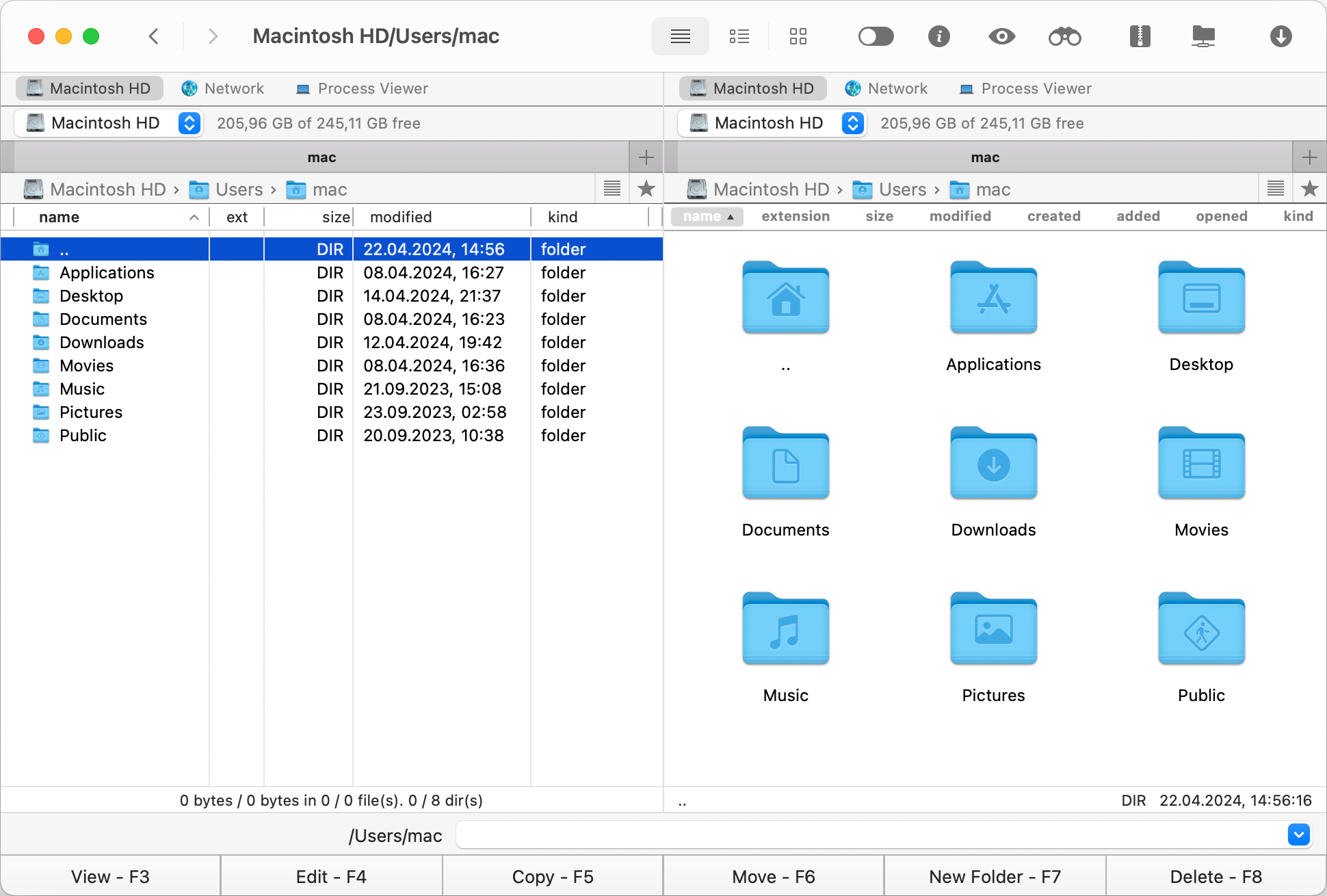
Once installed on your Mac computer, launch this app.
5

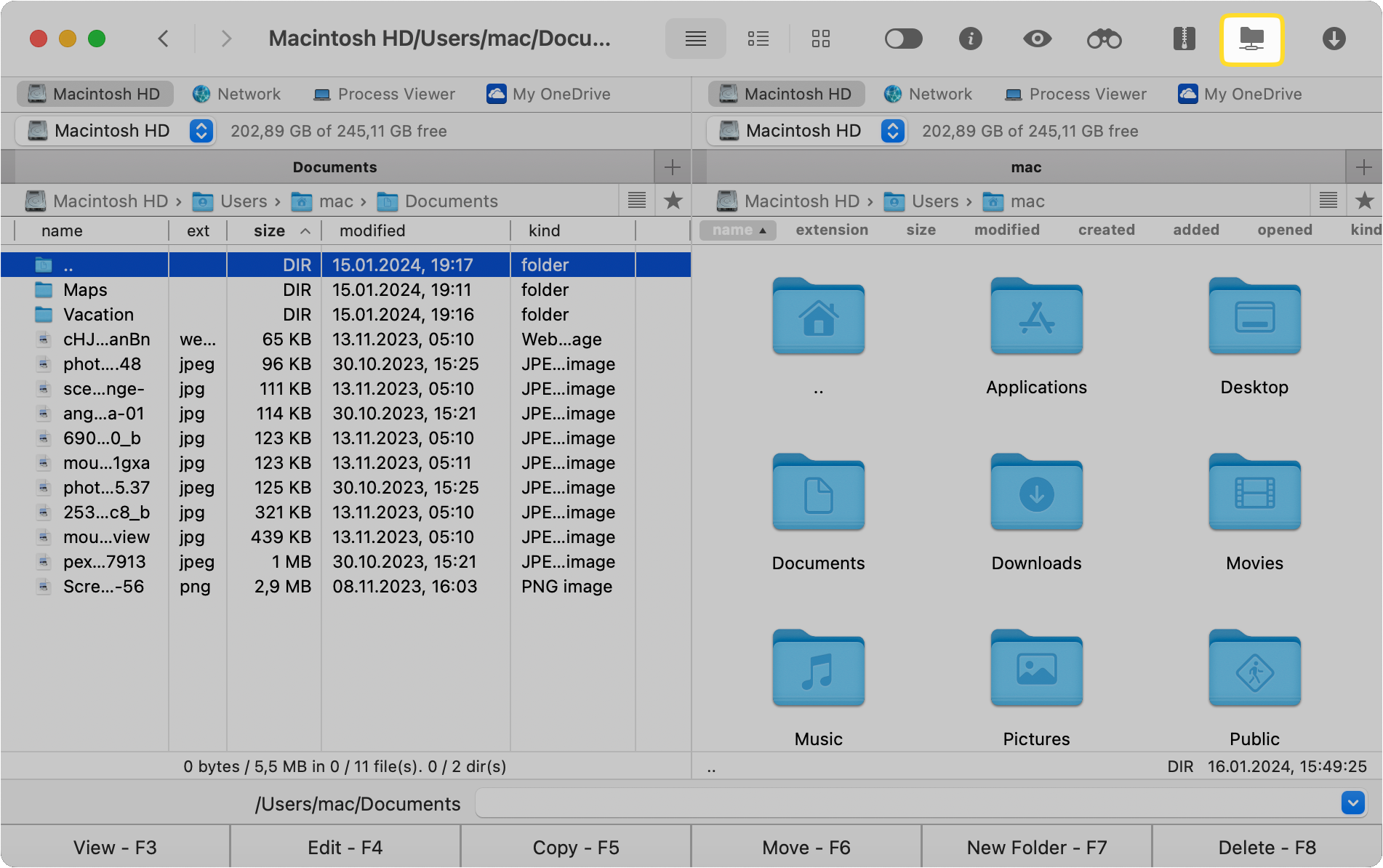
Open the Connection Manager in Commander One using any of the following: click the toolbar icon, go to Window -> Connection Manager, or press ⌘ + F.

6

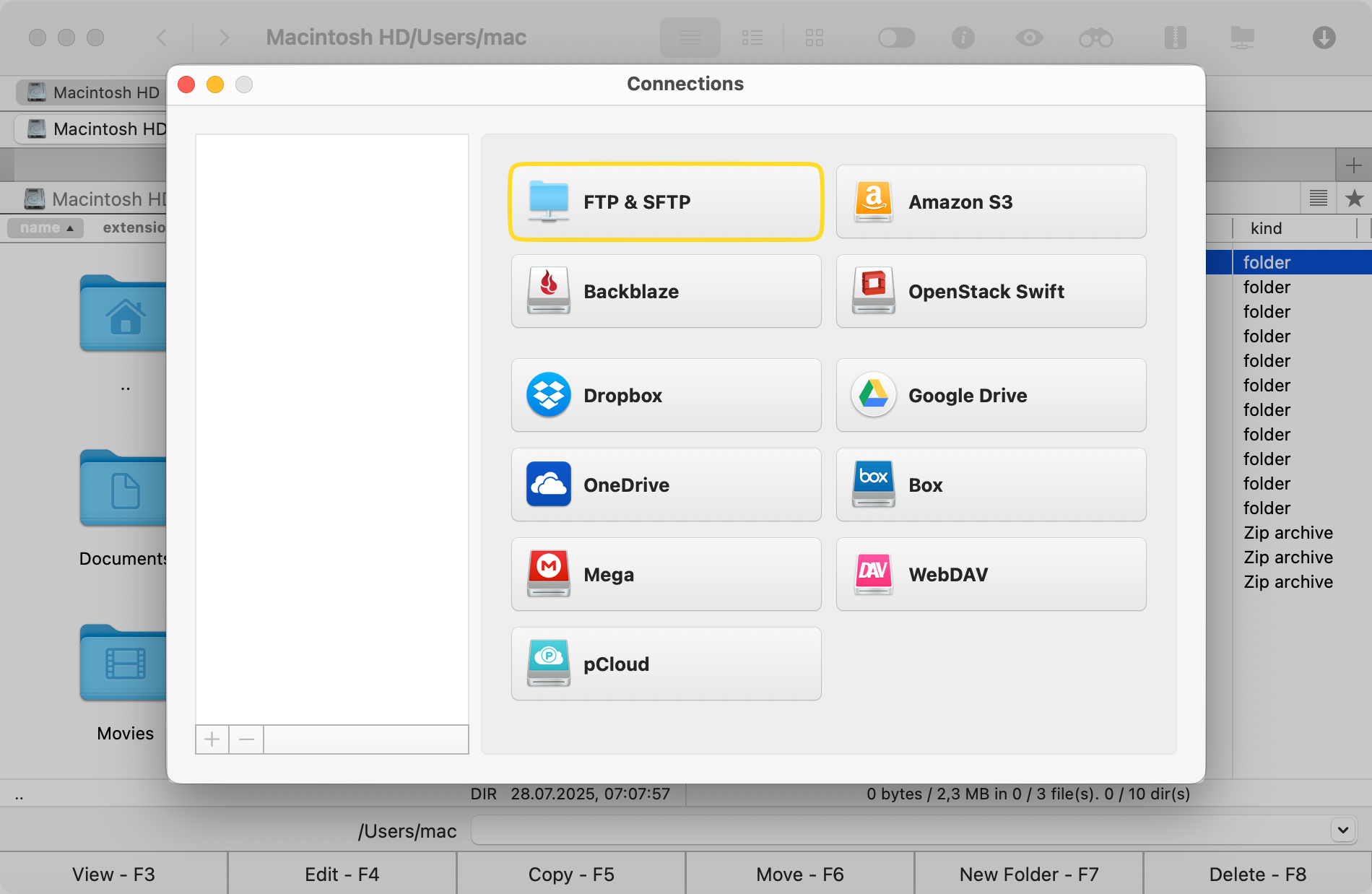
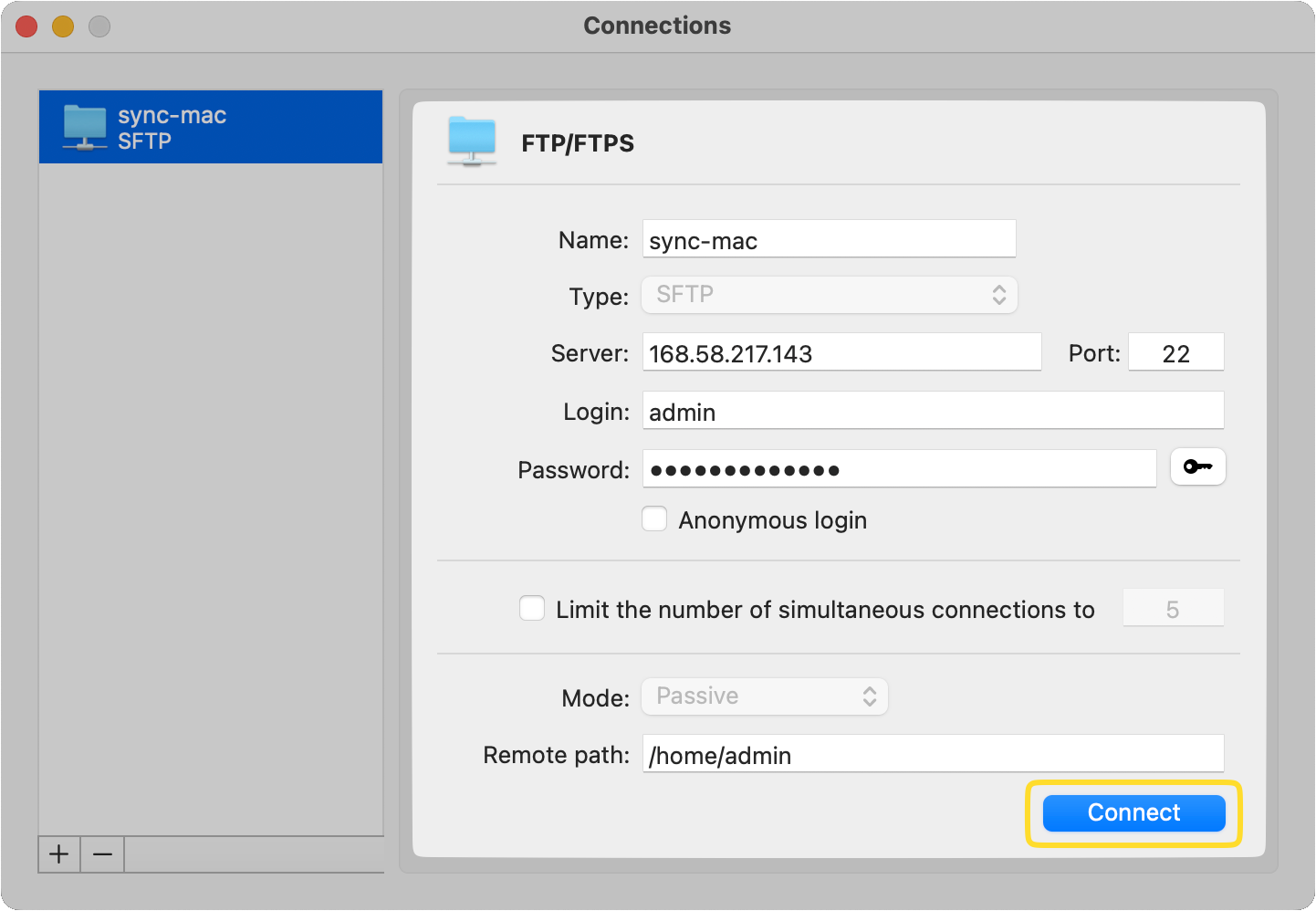
In the Connections window, click on the “FTP & SFTP” icon to create a new secure server connection.
7

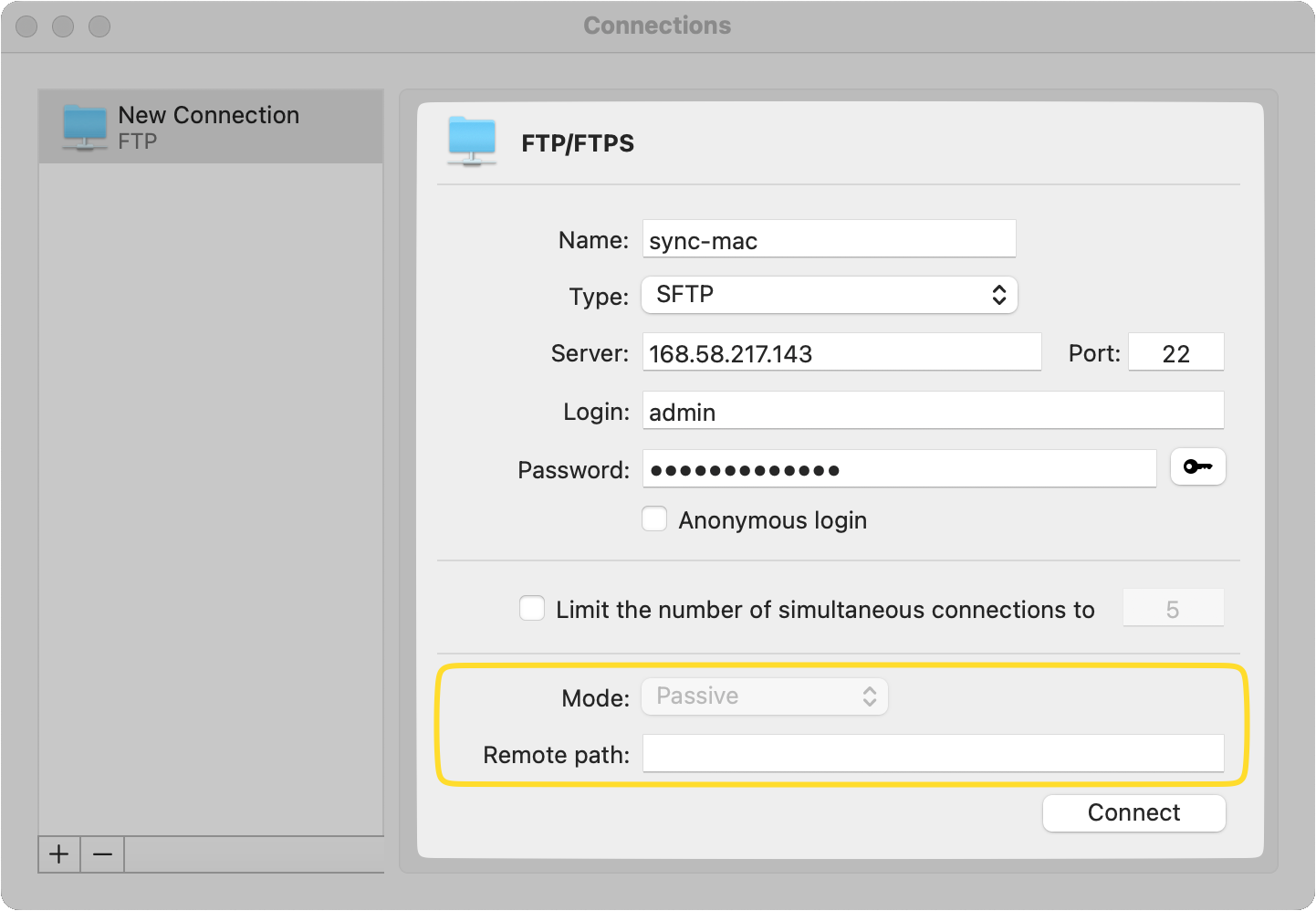
Add a connection name and enter the server’s address and port number.

8

Enter your username and password, or choose Anonymous login if the server allows it.

Note:  When you enter a password, Commander One stores it in Keychain so you won’t be asked again. If you leave the password field empty and the server requires one, you’ll be prompted every time you connect.
9

In the Remote path field, enter the folder path you want to access on the server.
10

Once all the details are filled in, click on “Connect.”
Once connected, you can manage your SFTP files directly within Commander One’s dual-panel interface. One panel shows your local Mac files, and the other displays files on the remote SFTP server.

You can rename, copy, move, or delete files just like on your computer. Drag-and-drop makes it easy to upload or download folders, and you can also edit files or change their permissions directly on the server. This setup is useful for developers, but the clear interface also makes transferring files and folders simple for everyday users.

Conclusions

SFTP remains the most secure way to transfer files on macOS, and you’re not limited to the command line to use it. While Terminal is a great built-in option, a user-friendly client like Commander One makes file management faster and more intuitive.

With encrypted transfers, cloud integrations, background tasks, and drag-and-drop support, this software lets you manage remote files just as easily as local ones. You can upload folders, unpack archived files, and transfer data between servers and cloud storage without switching tools.

It’s an all-in-one solution that cuts down on extra apps and makes everyday tasks faster. If you want secure file transfers without dealing with complicated commands, Commander One lets you handle everything in one place.

Frequently Asked Questions

No, they serve different purposes. SSH lets you securely log in to a remote server and run commands, while SFTP is designed specifically for transferring and managing files over that secure connection. With SFTP, all transfers are encrypted.
For advanced users, Commander One has a Terminal emulator (website version). For most users, an SFTP client like Commander One makes it easy to manage files without needing any command-line knowledge.

Commander One is intuitive and easy to use, yet it packs in loads of advanced features such as working with archives, iOS and MTP devices, a process viewer, encryption on online connections, and different search methods. The customizable dual-pane interface with unlimited tabs makes it easy to see and manage all your files and folders at any time.
Besides, you’ll benefit from features like a built-in FTP/FTPS/WebDAV/Amazon S3 client, multiple cloud services support, and hotkeys mapping.