The ability to work with packed files is typical for almost all Mac computer owners. When looking for how to unzip files, there is no need to worry since this function is available within the operating system. Nonetheless, based on your demands, using built-in functionality can be considered a bit limited. In case you require not only unzipping files but also managing them, it would be reasonable to learn both options.
Using macOS built-in methods
For beginners who are still learning about ways to unzip files on their Macs, Archive Utility is definitely the best approach. This native macOS tool allows you to unzip archives in the Finder in just a few steps:
Finder: Locate ZIP archive -> double-click it.
Once unzipped, files will be placed inside the same directory.
Right-click a zipped file
There is also an alternative way to unzip files on a Mac, which involves more effort.
Finder: Locate ZIP archive -> right-click/control-click it -> Open.
Wait for the process to complete. Archive Utility is good for basic tasks, but lacks flexibility and is not very useful if you need to preview files or extract selected files from an archive.
Unzip files on Mac using Commander One
In case you want to unzip files on Mac using a more advanced method that is more productive, consider using Commander One. Unlike Archive Utility, it gives you more flexibility when working with compressed files. Besides extracting archives, the app lets you browse archive contents, edit files without fully extracting them, and even upload an archive directly to cloud storage or a remote server.
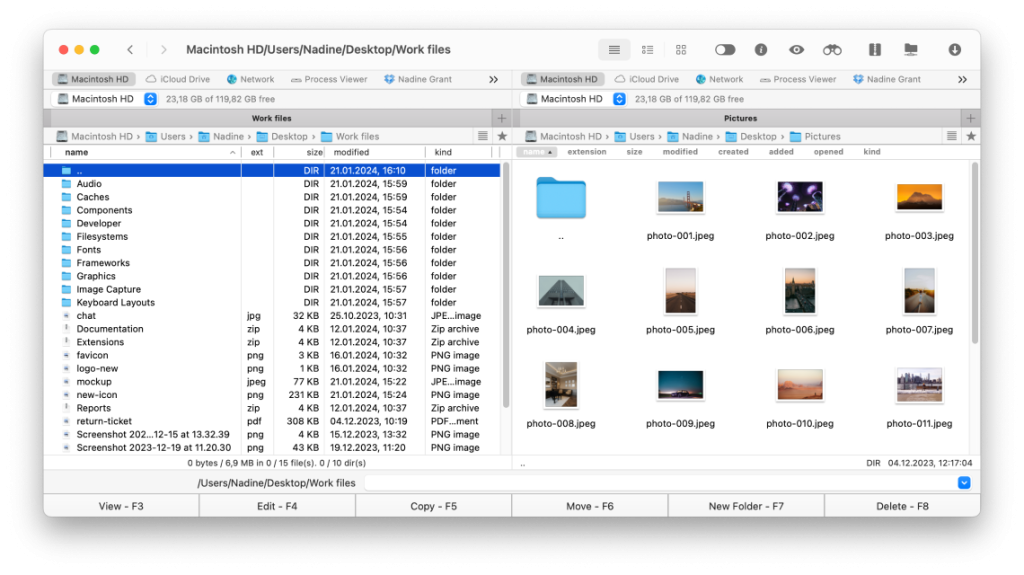
With a dual-pane interface and broad archive support, managing archives becomes easy and quick. The app can work not only with ZIP but also RAR, 7Z, TAR, GZ, BZ2, and many other meaning you won’t be limited only to common archives.
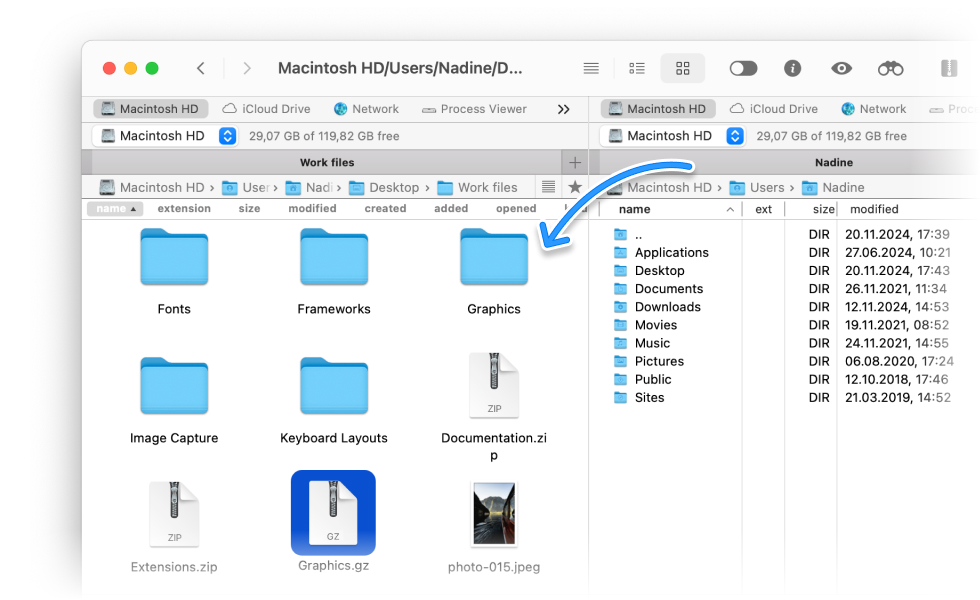
How to extract an archive on Mac via Commander One
Download and install Commander One on your Mac.
Open it and locate the archive you want to work with.
Your archive will be extracted to the current directory.
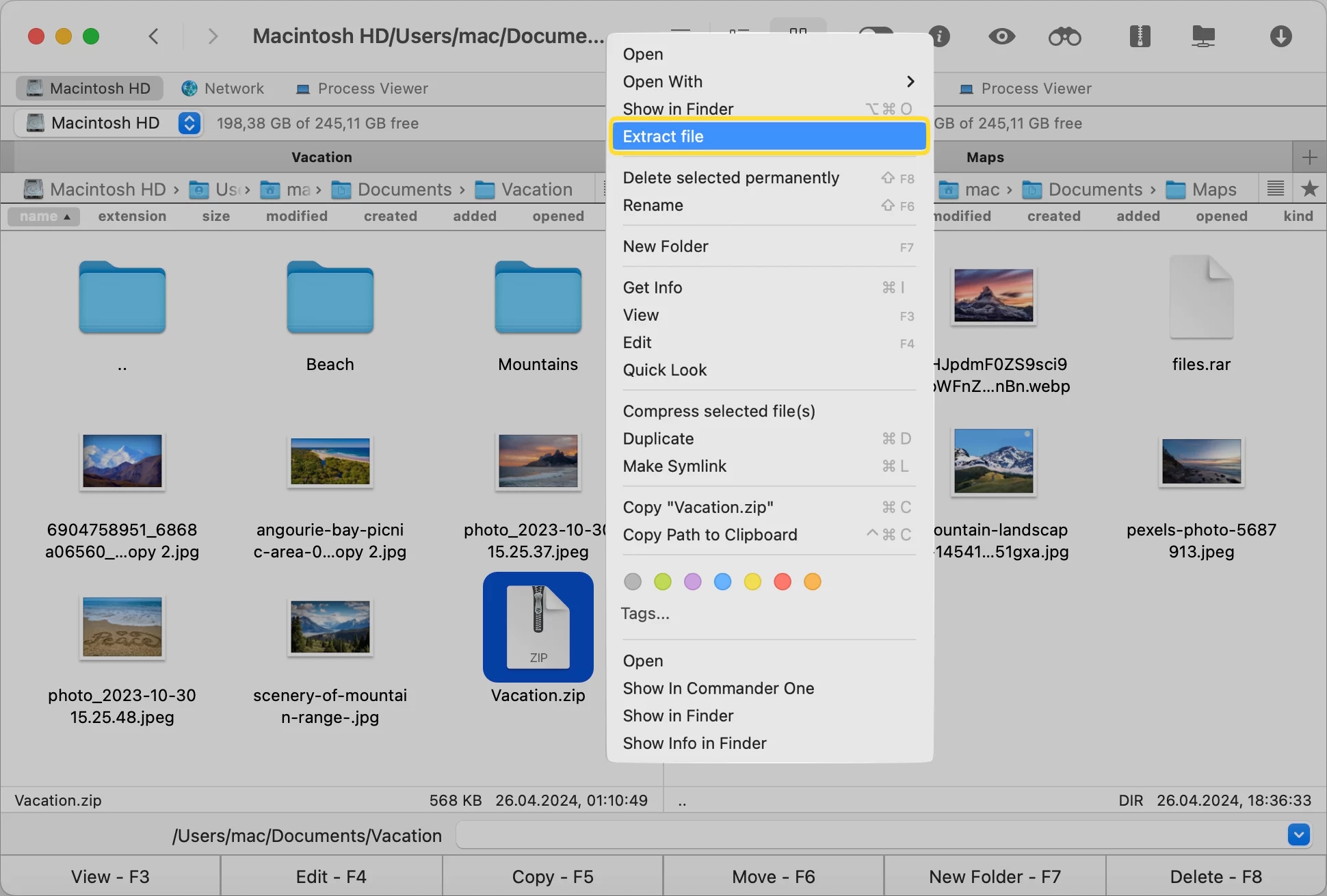
How to extract a file from an archive via Commander One
Commander One’s archiving and unarchiving features
Beyond basic unzipping files, Commander One gives you more control over how you work with archives. In contrast to the standard extract and open method, it offers you more features, namely:
ZIP files and folders
Commander One gives you a straightforward way to manage ZIP files without switching from one app to another. You can open archives like regular folders, extract only what you need, or handle several archives simultaneously. This will allow you to save time while keeping your work convenient.
Password protection
One of the key advantages of using Commander One is that the app enables you to password-protect your archives, ensuring that all contents in them are not accessible by unauthorized users.
Editing
It isn’t necessary to extract an entire ZIP file in order to edit some files. With the help of Commander One, you can perform modifications to your files within the archive itself. It helps reduce extra copies and keeps things tidy while you manage files.
Viewing/Previewing without extraction
Even before you extract the archive, you are able to easily view its contents. With this option, it becomes possible to search for necessary documents and avoid unnecessary steps. Being able to preview content in advance adds more control and helps you manage files more efficiently.
The other advantage of Commander One is that you can use the application’s built-in Terminal to work with their ZIP files and upload their files to the remote server via FTP or WebDAV. Thus, this tool can be considered ideal for those interested in a more dedicated archiving software.
Conclusion
Knowing how to unzip files on Mac is only part of the picture. Built-in macOS tool is fine when you need to quickly unzip files, but it doesn’t offer much control beyond the basics. If you regularly work with archives and want a better way to manage files, Commander One gives you more flexibility, saves time, and makes everyday tasks more convenient.