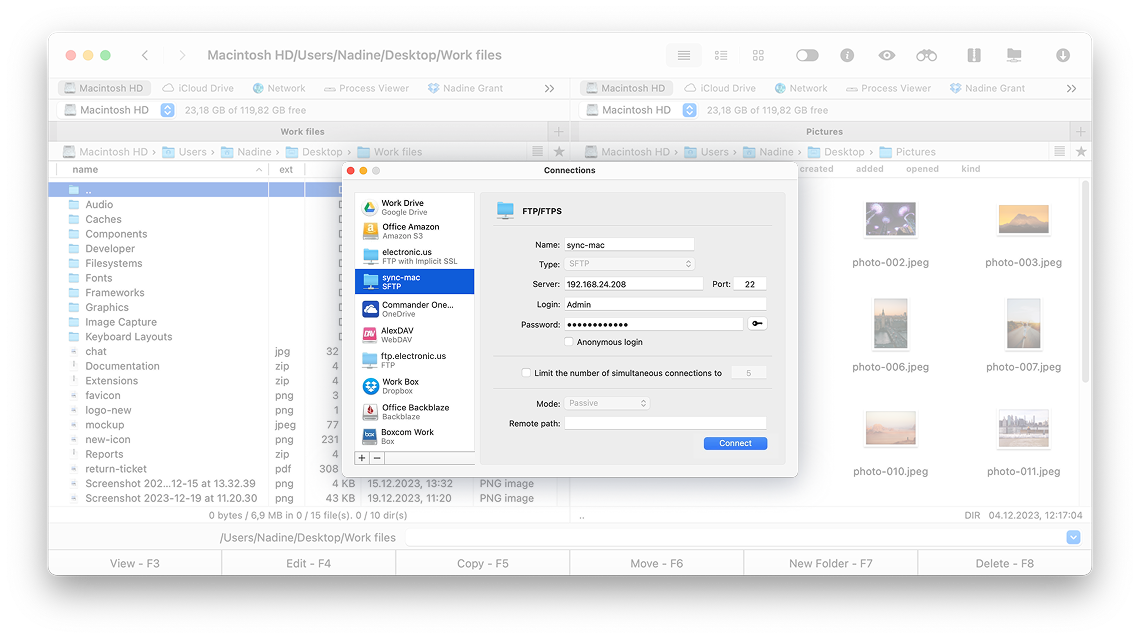
The best FTP client for Mac to manage hosting files

Connect to Bluehost, SiteGround, GoDaddy, Hostinger, cPanel and any FTP/SFTP hosting in seconds. Manage your server files without a browser-based file manager.

4.7 based on 1103 user reviews
Apple & Intel Optimized for both Apple silicon and Intel
Stars Approved by Christian Ghisler as Total Commander for Mac
Compatible with:
  • Bluehost
  • SiteGround
  • GoDaddy
  • Hostinger
  • Kinsta
  • WP Engine
  • DreamHost
  • + any FTP/SFTP host

Why use an FTP Client instead of cPanel File Manager?

Browser-based file managers are built for occasional use.
Here's what you're missing.
Browser-based

cPanel File Manager

  • One file at a time
    Uploading 200 files via cPanel browser interface is slow and frustrating.
  • Session timeouts
    Browser session expires mid-upload. Start over. Again.
  • No split-screen view
    Working in a single browser tab makes it impossible to view your Mac and server side-by-side.
  • Slow navigation
    Every folder click is a page load. Deep directories take forever.
Desktop app - macOS

Commander One FTP Client

  • Bulk drag & drop
    Select 200 files, drag to server. Uploads automatically, one by one with real-time progress.
  • Stable persistent connection
    Desktop app maintains a persistent connection. Queue manager handles interruptions.
  • Dual panel view
    Local files on the left, hosting server on the right - always side by side.
  • Instant navigation
    Browse directories at full speed. No page reloads, no waiting.

Commander One

4.7 based on 1103 user reviews

How to connect to popular hosting providers

Step-by-step connection guide for the most common web hosting platforms on Mac.

Bluehost

FTP/SFTP · Port 21/22
  1. Log into cPanelFTP Accounts
  2. Copy FTP hostname and credentials
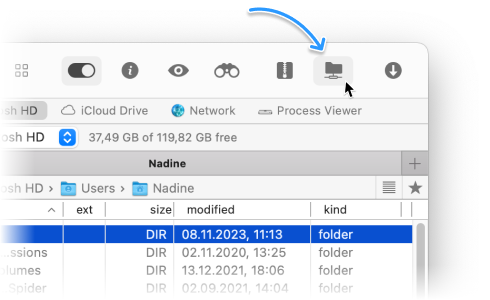
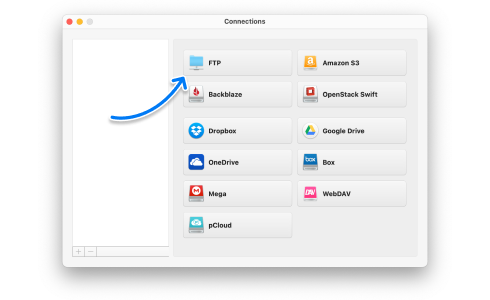
  3. Commander OneConnectionsNewFTP
  4. Paste hostname and credentialsConnect
Host: ftp.yourdomain.bluehost.com

SiteGround

SFTP · Port 18765
  1. Site ToolsDevsSSH Keys Manager
  2. Enable SFTP access, note custom port
  3. Commander OneConnectionsSFTP
  4. Enter host, user, port 18765Connect
Important: uses non-standard port 18765

GoDaddy

FTP · Port 21
  1. My ProductsHostingManage
  2. SettingsFTP UsersFind credentials
  3. Commander OneConnectionsFTP
  4. Enter hostname and credentialsConnect
Host: ftp.yourdomain.com (shared hosting)

Hostinger

FTP · Port 21
  1. hPanelFilesFTP Accounts
  2. Create FTP account, note hostname
  3. Commander OneConnectionsFTP
  4. Enter host, username, passwordConnect
Host: files.000webhost.com or ftp.yourdomain

Kinsta

SFTP · SSH · Port 22
  1. MyKinstaSitesYour SiteInfo
  2. Copy SFTP/SSH hostname, port, username
  3. Commander OneConnectionsSFTP
  4. Paste credentialsConnect instantly
Kinsta requires SFTP — no plain FTP support

WP Engine

SFTP · Port 2222
  1. WP Engine User PortalEnvironments
  2. SFTP tabcopy host and credentials
  3. Commander OneSFTPPort 2222
  4. Enter credentialsConnect
Uses port 2222 — enter manually in connection

What you'll do with your hosting files

Step-by-step workflows for the most common hosting file management tasks on Mac.

  1. Open local site folder in the left panel
    Navigate to your site directory — e.g. /Sites/my-project/
  2. Connect to the hosting server in the right panel
    Go to Connections → SFTP/FTP → navigate to /public_html/
  3. Select all website files with Cmd+A
    Select all the files in your local project folder, even if it contains 500+ files.
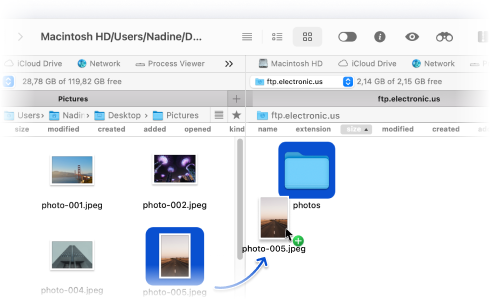
  4. Drag to the right panel
    Commander One uploads all files in parallel. Progress bar per file, queue overview.

  1. Navigate to /public_html/ on the server
    In the right panel, connect to your hosting server and open the website’s root directory.
  2. Show hidden files
    Select Commander One → Show Hidden Files to reveal .htaccess.
  3. Press F4 to open the editor
    The file opens in your system’s default text editor (e.g., TextEdit, configurable). No download required.
  4. Edit and save with Cmd+S
    Changes are written directly to the server file.

  1. Select /public_html/
    In the server’s right panel, highlight the entire public_html folder.
  2. Download all files locally
    Drag the folder to the left panel to copy its contents to your computer.
  3. Create a ZIP archive
    Compress the downloaded folder into a single ZIP file locally (e.g., public_html-2025-01-15.zip).
  4. Upload the archive to the server
    Drag the ZIP file to the server panel. A single archive is easier to manage and restore than thousands of individual files.

FTP, SFTP, FTPS — all hosting protocols supported

Different hostings use different protocols — Commander One supports them all.
FTP · Port 21

FTP — Standard

Classic File Transfer Protocol. Works with virtually all shared hosting plans. Use when SFTP is not available.
Bluehost GoDaddy Hostinger A2 Hosting
SFTP · Port 22

SFTP — Encrypted

SSH-based encrypted protocol. Required by managed WordPress hosts. Protects credentials and file content in transit.
Kinsta WP Engine SiteGround SSH Cloudways DreamHost
FTPS · Port 21/990

FTPS — FTP over SSL

FTP with SSL/TLS encryption layer. Used by some corporate and enterprise hosting environments.
Corporate hosts Enterprise FTP Custom servers

Supported Archives

extract, copy, modify

Extract, create and modify

FREE PLAN: .zip 

PRO PLAN: .7z, .txz(.tar.xz), .tlz(.tar.lzma), .tbz(.tar.bz), .tgz(.tar.gz), .tz(.tar.z)
Extract and modify

Extract and modify

PRO PLAN: .ipa, .apk, .jar, .ear, .war, .zipx, .xpi, .tar, .cab, .bz, .bz2, .taz, .z, .gz, .lzma, .xz, .tb, .tb2, .tbz2(.tar.bz2)
Read only

Read-only

PRO PLAN: .rar, .xip, .xar, .iso, .cab

Hosting scenario: restore from cPanel backup

  • Hosting sends you backup.tar.gz via cPanel Backup Wizard

  • Download backup.tar.gz to your Mac via SFTP (right panel → drag to left)

  • Browse archive contents without extracting

  • Extract only the folder you need (e.g. just public_html/uploads/)

  • Upload the extracted folder back to hosting via SFTP. Restore complete.

⏱ No Terminal · No extra software
11 Years on
the market
55.3K+ Active
users
4.4 App Store
Rating

Frequently Asked Questions

Commander One is the best FTP client for cPanel hosting on Mac. It supports all FTP credentials generated in cPanel, connects in seconds, and offers dual-panel navigation that makes file management far faster than cPanel’s built-in browser-based file manager. Supports FTP (port 21) and SFTP (port 22).

Yes. Commander One works with all major hosting providers. Get the FTP hostname and credentials from your hosting control panel — cPanel for Bluehost and GoDaddy, Site Tools for SiteGround (SFTP port 18765), hPanel for Hostinger. Enter them in Commander One → Connections → New Connection.

Commander One from the Mac App Store has some limitations compared to the PRO version available on our website. You can find a detailed comparison chart in our user guide here.

The PRO Pack Personal license allows installation on a single Mac only. If you need to use the software on multiple machines, consider purchasing the Team License for 5 Macs.

Yes. When you use SFTP (SSH File Transfer Protocol), all file transfers and credentials are encrypted via SSH-2. Commander One also includes an additional encryption layer for stored connection credentials. Always use SFTP rather than plain FTP when your hosting supports it.

Yes. Commander One’s built-in archiver supports TAR.GZ natively on macOS. Download the .tar.gz backup from your hosting, open it in Commander One, browse the contents, and extract only the files or folders you need — without extracting the entire archive first.

Commander One

4.7 based on 1103 user reviews
System requirements:
macOS 10.13 and later
Latest version:
3.18(4006) 25 Sep, 2026
What’s new:
Organize files on macOS