 Commander One
iPhone users frequently face the following issue: their device’s file system cannot be accessed directly because it is closed, making the process of transferring and viewing files impossible. Nevertheless, transferring files from an iPhone to Mac is still possible. All you need to know is which tools to use. Below are all the possible methods described – both native and third-party solutions included.
Share Files Between iPhone and Mac Using Native Methods
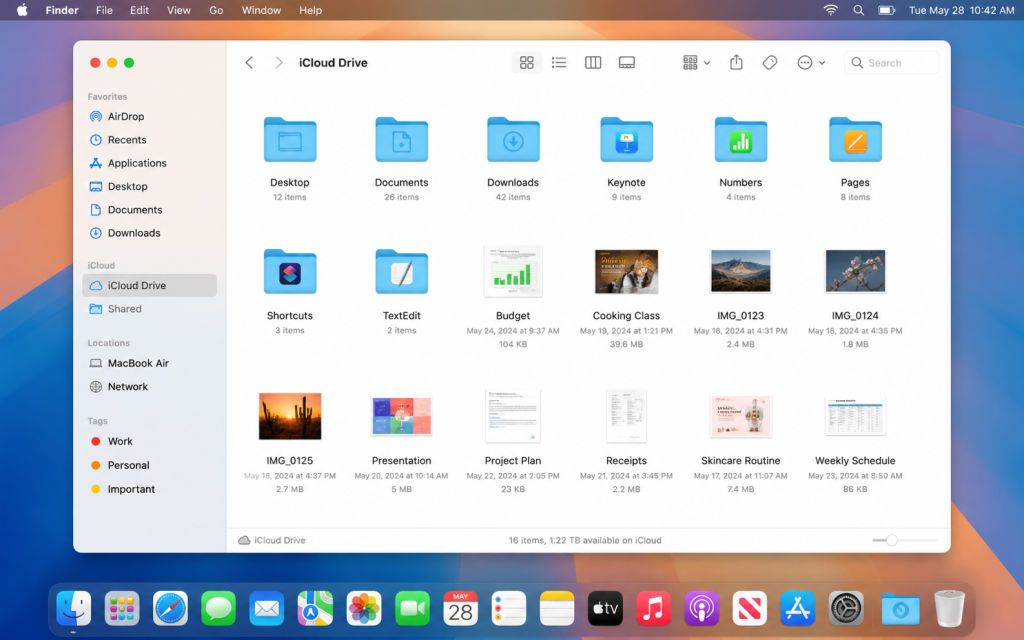
How to Transfer Files from iPhone to Mac with iCloud Drive
If you need to wirelessly move files from iPhone to Mac without unnecessary apps, iCloud Drive can handle it effortlessly. The main requirement is that both devices must be running the latest versions of iOS and macOS and connected to Wi-Fi.
- Sign in to your iCloud account using the same Apple ID on both devices.
- On iPhone: Settings ->[your name] ->iCloud , and enable iCloud Drive and Photos.
- On Mac: Apple menu ->System Settings ->iCloud , and check the box next to iCloud Drive. Done. Now you can access iPhone files from Mac.
One obvious drawback of this method is that it mostly depends on your Internet speed and the amount of available iCloud storage.
Use AirDrop to Transfer Files From iPhone to Mac
Perhaps the quickest way to share files between Mac and iPhone is by using AirDrop. This method does not require an Internet connection or cables. All that is needed is Bluetooth and Wi-Fi.
Setting up on a Mac:
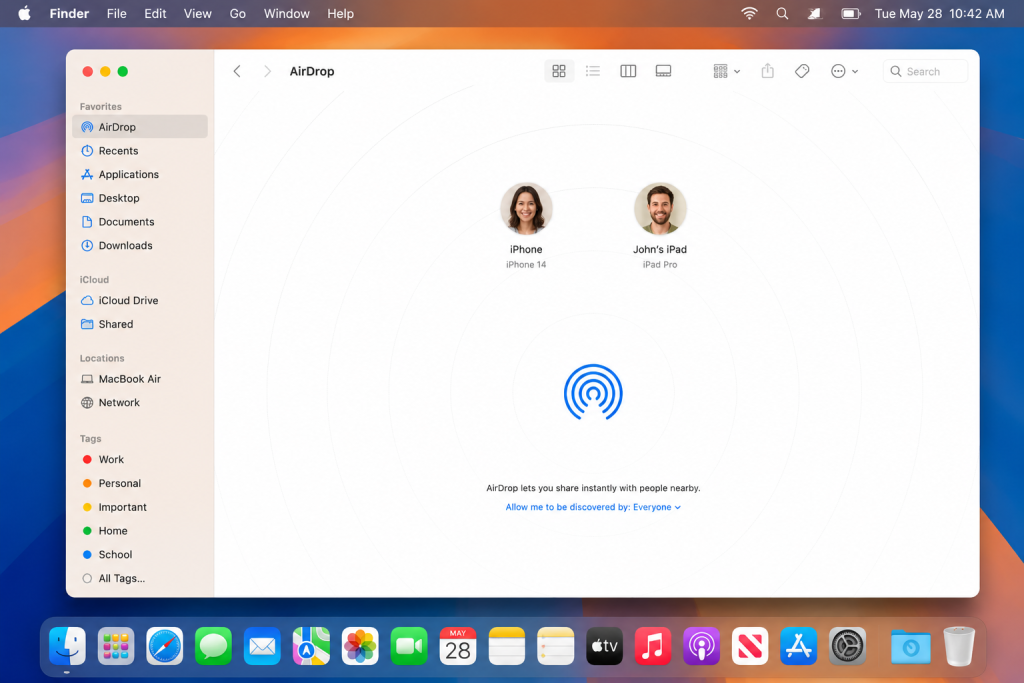
- Open Finder -> select AirDrop in the sidebar, or click Go -> AirDrop in the menu bar. Make sure Bluetooth and Wi-Fi are turned on.
- At the bottom of the window, click “Allow me to be discovered by” and select who can see you: “Everyone” or “Contacts Only”.
Setting up on iPhone:
- Open Control Center. From the top-right corner of your screen, swipe down (from bottom for models with a Home button).
- Press and hold the Wi-Fi/Bluetooth tile -> select AirDrop.
- Set visibility by choosing either “Contacts Only” or “Everyone for 10 Minutes”.
You can now select the file from your iPhone, tap the Share button, and your Mac should appear in the list. Just confirm the transfer on your computer, and you’re done.
Transfer Files Between iPhone and Mac Using Third-party Apps
Transfer files between iPhone and Mac with Commander One
Apple’s built-in tools are handy, but they’ve got limits. If you want full access to your iPhone files and not just what’s stuck in a few approved folders, then you should check out Commander One.
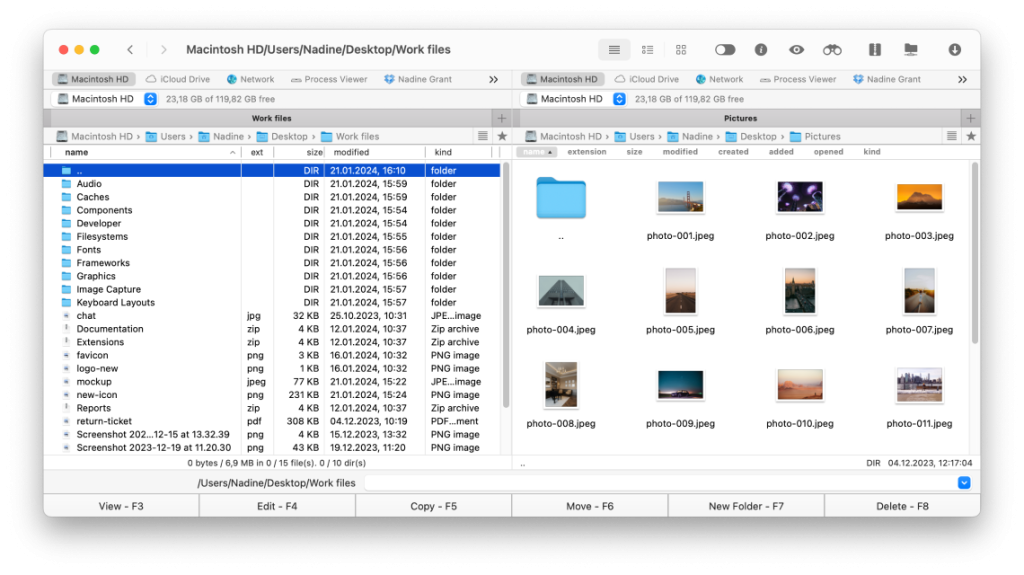
This is a dual-pane file manager for Mac that operates a lot like Finder, only it does way more. It handles iPhones, Android devices, and MTP devices easily. It mounts your iPhone like a regular drive, and you deal with files just as you would with any Mac folder. Just connect your iPhone via cable, and it shows up in the app as a regular drive. From there, you can just drag and drop files however you please.
Сonnect your iPhone to a Mac using USB and find it in the Finder’s sidebar.
Select your iPhone and click “Trust” in Finder’s window.
Confirm by tapping “Trust” on your device.
After that, reconnect your iPhone via USB.
How to Transfer Files Between iPhone and Mac via Dropbox
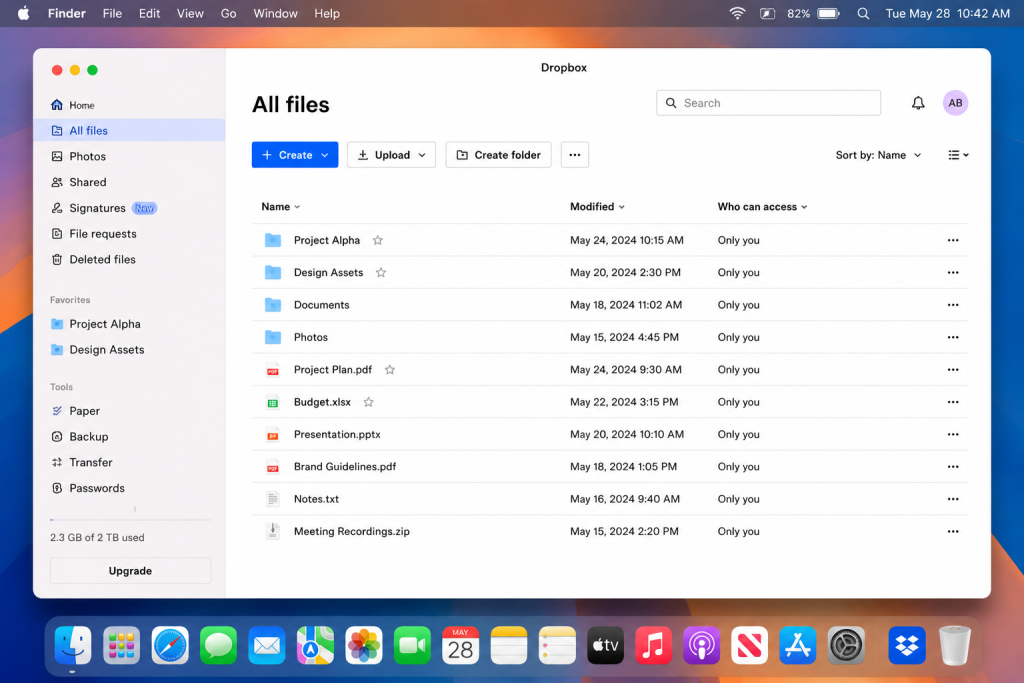
One more solution is to use Dropbox – a cloud-based service that allows you to share files between devices without using a USB cable. All you need is just an Internet connection on both devices.
- Sign up or sign in to dropbox.com and create a folder for uploading files.
- On your iPhone: install the Dropbox app from the App Store and sign in using the same credentials.
- In the app, open the desired folder, tap “+” to Upload photo or video (or file) – select what you want to transfer.
- On your Mac: open Dropbox in any web browser or desktop client, navigate to the folder you created, and access iPhone files from Mac.
Unfortunately, the free account will allow you to store only 2GB of data in Dropbox. While 2 GB is enough for one-time sharing, this might not be enough if you deal with videos or larger archives.
Conclusion
All the above-described methods of transferring files from an iPhone to Mac are effective, but you should select the one that is most convenient for you. AirDrop can be extremely helpful when you have to transfer several documents urgently. iCloud manages the synchronization process in the background. Dropbox will help you if your devices are not located in one place. As for Commander One, it will work well in case you require total access to the content of your iPhone.