Manage WordPress Files via FTP/SFTP on Mac with Commander One

Upload themes, manage files, edit config files with a fast dual-pane file manager. Take full control of your WordPress site files directly from your Mac.
4.7 based on 1103 user reviews
Apple & Intel Optimized for both Apple silicon and Intel
Stars Approved by Christian Ghisler as Total Commander for Mac

Frequently Asked Questions

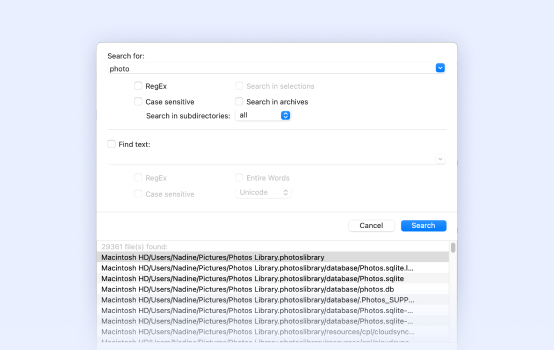
Yes. Commander One lets you search directly on a connected FTP or SFTP server without downloading files first. With the server open in the active panel, click the Search button in the toolbar. You can search by filename, wildcard (e.g., *.log), file contents, or RegEx pattern. Open results directly or load them into the panel for bulk operations.

Yes. Commander One supports SFTP (SSH File Transfer Protocol) with SSH-2 encryption. This is the protocol required by managed WordPress hosts like Kinsta, WP Engine, and SiteGround’s SSH access. To connect, go to Connections → New Connection → SFTP.

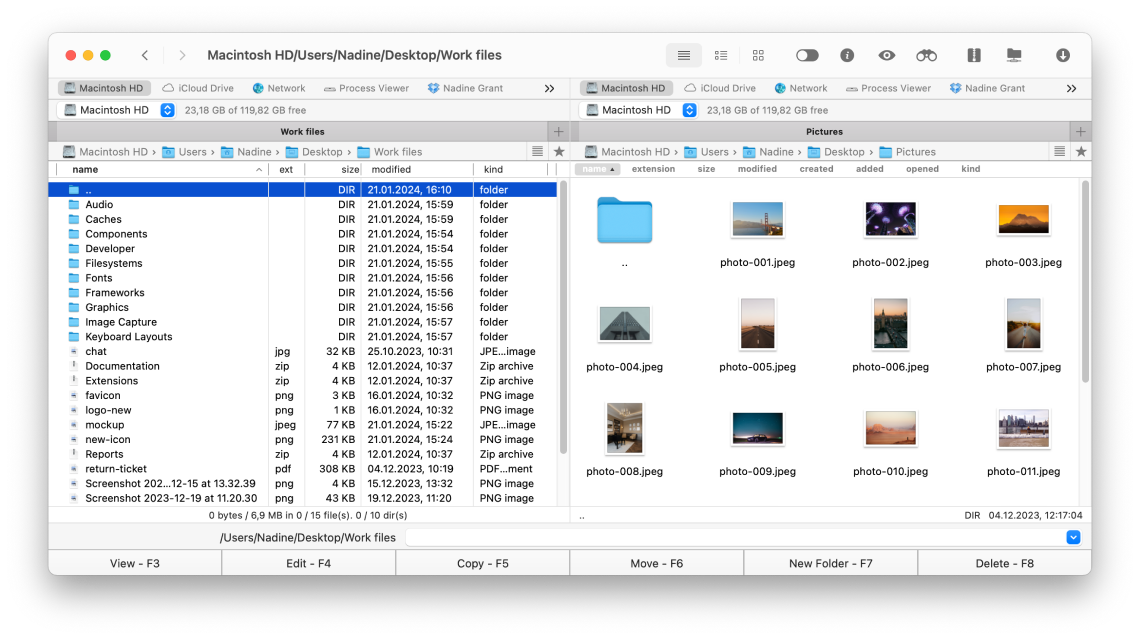
Open Commander One and launch the Connections Manager — via the toolbar icon, the menu Window → Connections Manager, or by pressing ⌘F. Select New Connection, choose FTP or SFTP, and enter the hostname, username, and password from your hosting control panel (cPanel, hPanel, MyKinsta, etc.). Click Connect, and your server will appear in the right panel.

Commander One includes a built-in terminal emulator that works like a standard Mac terminal. To run WP-CLI commands on your server, first establish an SSH connection by entering the server address and login credentials (password or SSH key). Then execute the commands in the active SSH session.

Commander One

4.7 based on 1103 user reviews
System requirements:
macOS 10.13 and later
Latest version:
3.18(4006) 25 Sep, 2026
What’s new:
Organize files on macOS